
Download before leaving your connection
For an optional paper backup, open Character Sheet and choose Sheet settings → Layout. Select your paper size and automatic page breaks. Long inventories and spellbooks use four-column continuation pages; turn automatic breaks off if your browser or printer needs continuous flow.
Installing NAT420 or opening a sheet does not automatically save a private offline copy. Download the character in the browser or installed app you will actually use at the table.
- While connected, open Settings, find Offline character access, and choose Open offline workspace. You can also open it directly.
- Use Verify sign-in, then Enable on this device. This requires a signed-in account and HTTPS or localhost.
- Select the character and choose Download / refresh. Repeat for any other characters you need.
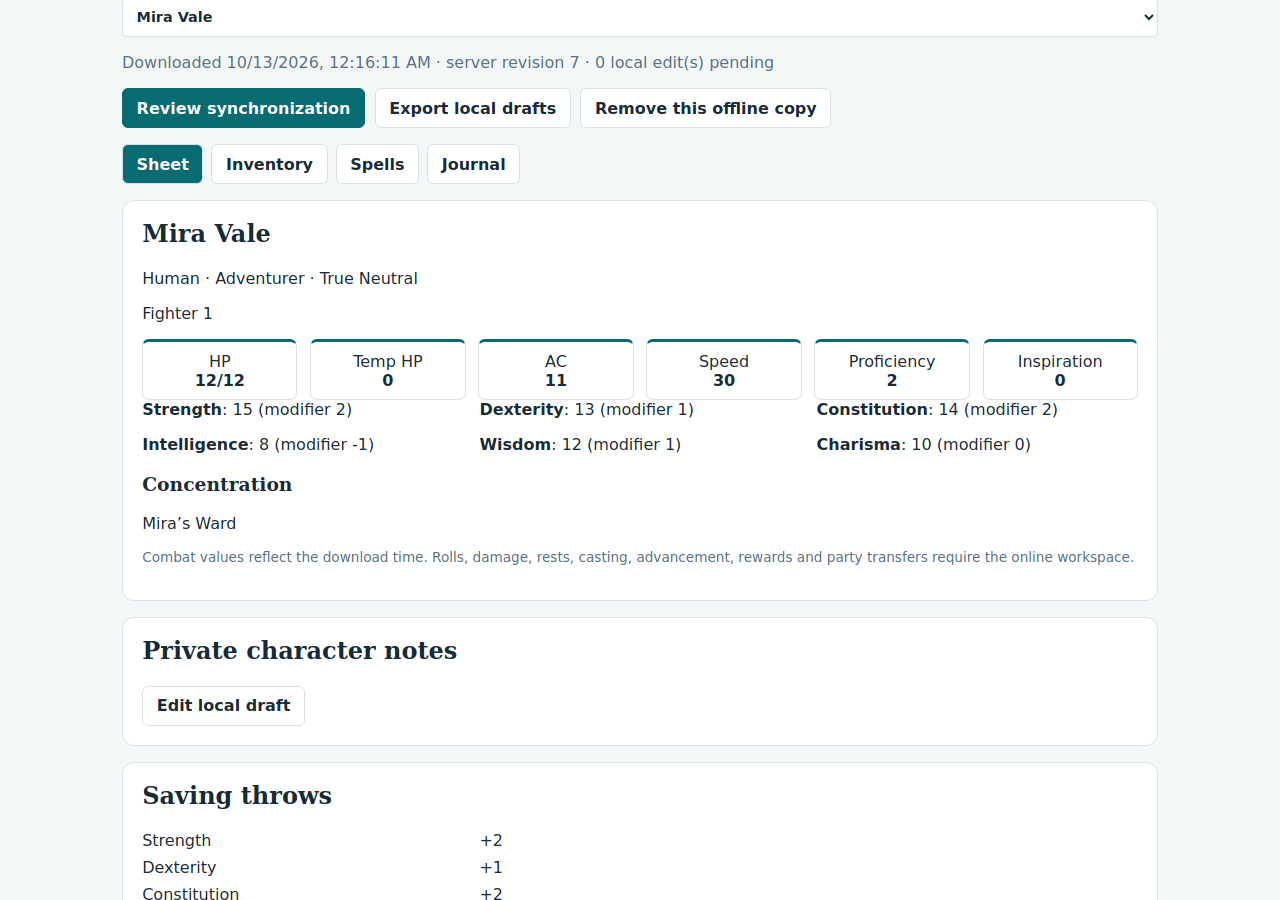
- Open the downloaded Sheet, Inventory, Spells, and Journal tabs. Check that the latest preparation and equipment are present.
Mira’s journey checklist
Before travelling, Mira’s player refreshes the sheet, checks the rope quantity and prepared spells, then disconnects and reloads the workspace. If the sheet still opens, the copy is available in that browser.
Know what can be saved locally
The offline workspace supports limited drafts: character notes, quantities and equipped/attuned status for existing items, spell preparation and notes, and journal text or new quick entries. Save the edit locally before closing its editor.
It does not queue spell casts, rests, combat actions, or party transactions. Record those outcomes at your table and review them in the connected tools later. An offline copy is a snapshot, so someone else’s later changes will not appear until you refresh or synchronize.
Keep the copy on a trusted device. Browser storage is not encrypted by NAT420. Signing out, switching accounts, clearing site data, or removing the offline copy can remove local work; export drafts before removing them.
Reconnect and review changes
- Reconnect and verify that you are using the same account.
- Choose Review synchronization. Read the proposed changes. If a field changed both locally and on the server, choose the value you intend to keep.
- Review again after resolving conflicts, then choose Confirm synchronization. Reconnecting alone never uploads your drafts.
- Check the saved character and refresh its offline copy before your next session.
If a response is interrupted, use the workspace’s status/recovery controls before attempting another synchronization. Keep the local drafts until the server result is confirmed.