
Choose your role at the table
Party Lobby gives your group one shared initiative order, encounter roster, and turn counter. The host runs the encounter; each player brings a saved character. The personal Initiative tool remains a separate workspace.
Sign in and create or select your character first. A registered account is needed for friend requests and private messages. You do not need to be friends to join a party.
Planning the whole game night? Begin with the DM Session Prep Checklist’s party-setup stage. This guide explains how to bring that prepared group into one shared table.
Host a party as Dungeon Master
- Open Settings and enable Dungeon Master controls. This enables game tools without granting site administration.
- Return to Party Lobby and choose Create lobby. Name the table and optionally select your own character. You can host without a character.
- Open the lobby and use Copy code. Give the eight-character invite code to your players. Keep Allow joining with the code enabled while they join.
- Review The party to confirm the right players arrived. You can host up to three open lobbies.
An invite code grants admission to this party while joining is enabled. Friend connections use their separate request and acceptance controls. Anyone who receives an active code may try to join, so share it with the intended players.
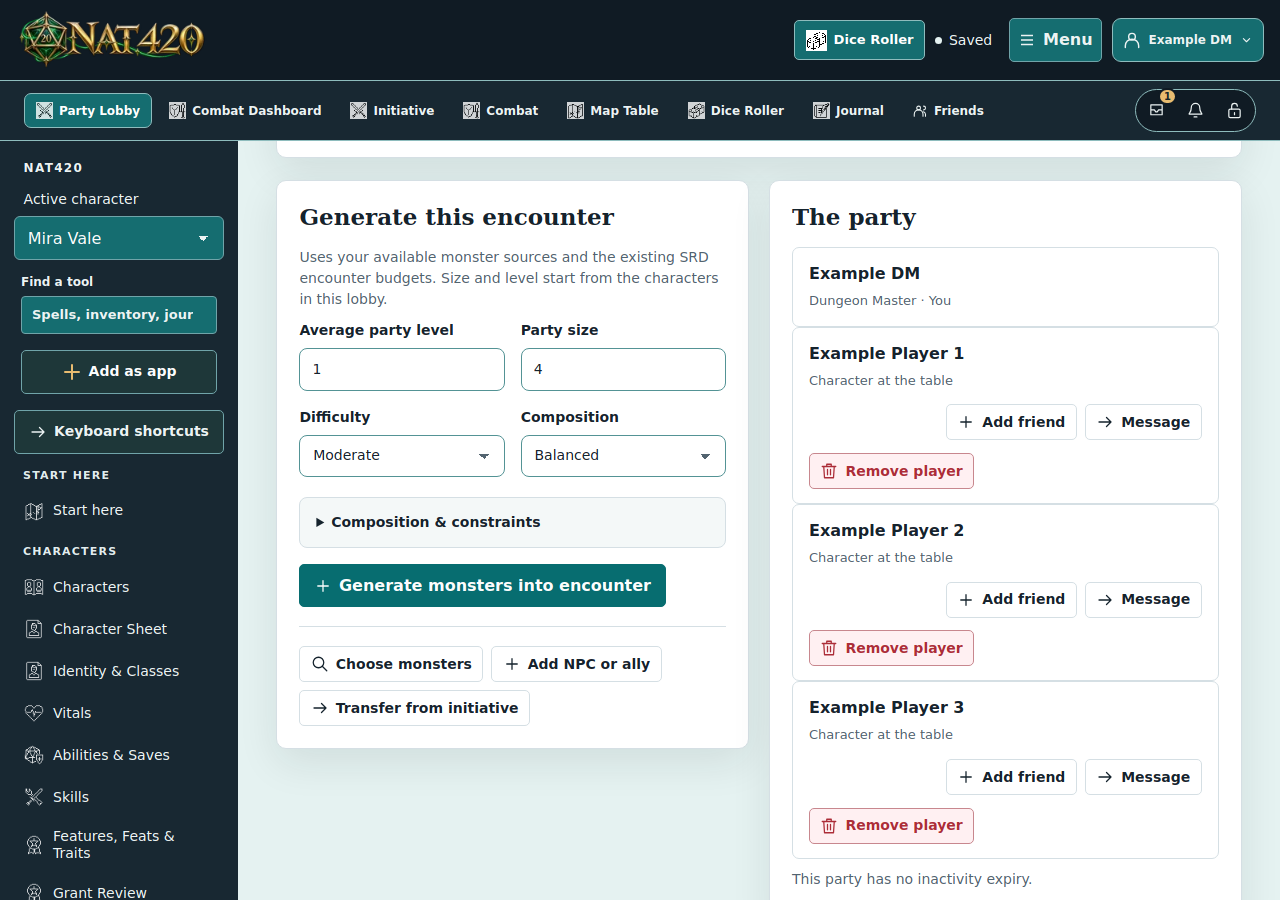
Join with your character
- Get the code from the DM and open Party Lobby.
- Enter the Party code, choose your unarchived character, and choose Join party.
- Check your character name, HP, AC, and conditions in the shared encounter. Use Change my character before the encounter starts if you selected the wrong one.
Your display name and selected character’s encounter statistics are shared with the table. While the lobby is open, its DM with DM controls enabled can read the selected character’s saved mechanics, including when friend visibility is Private. Journals, private notes, other characters, and account details remain excluded. Leaving, removal, changing characters, or closing the lobby ends that access; it cannot recall information already seen.
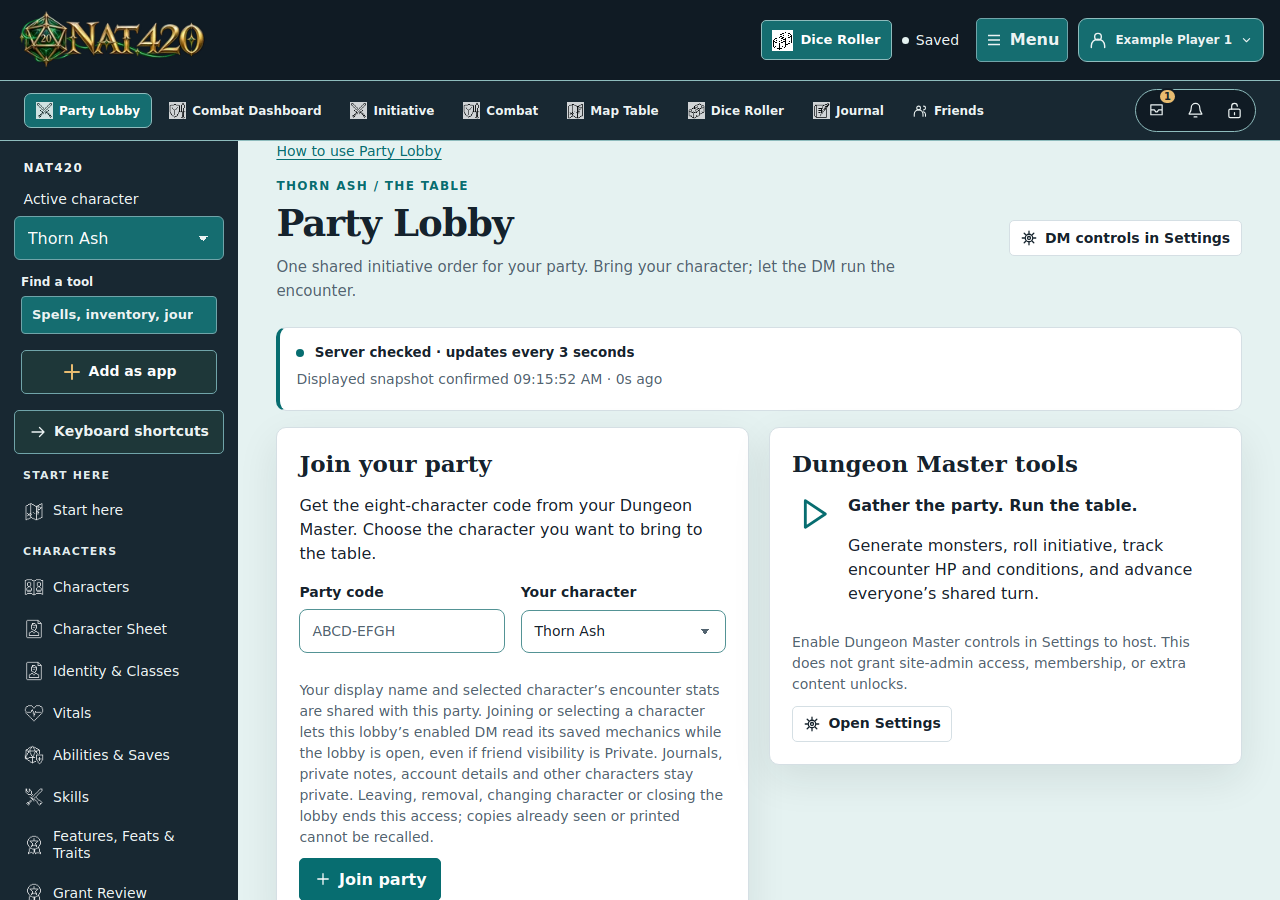
Prepare and run shared initiative
- The DM adds creatures with Choose monsters or Generate monsters into encounter, and uses Add NPC or ally for other participants. Review the generated roster before starting the encounter.
- Players can roll their own initiative. The DM can choose Roll for all. Review the resulting order, then choose Begin encounter.
- Use HP and condition controls to record agreed outcomes. The DM chooses Next turn to advance the shared order.
- Use End encounter when the fight is over. Review the roster before preparing another encounter; reset and replacement controls affect the current setup.
The DM controls whether players see enemy HP and AC. Ask the DM which creature details are available to the players. Confirm spell effects, saves, concentration, and resource costs with your table.
Adding, joining, and generating prepare the roster at initiative 0; they do not roll. A rolled result can also be 0, so check the recorded roll when uncertain. For a worked objective, terrain plan, and first round, follow First Combat Encounter.
Understand encounter values and saved sheets
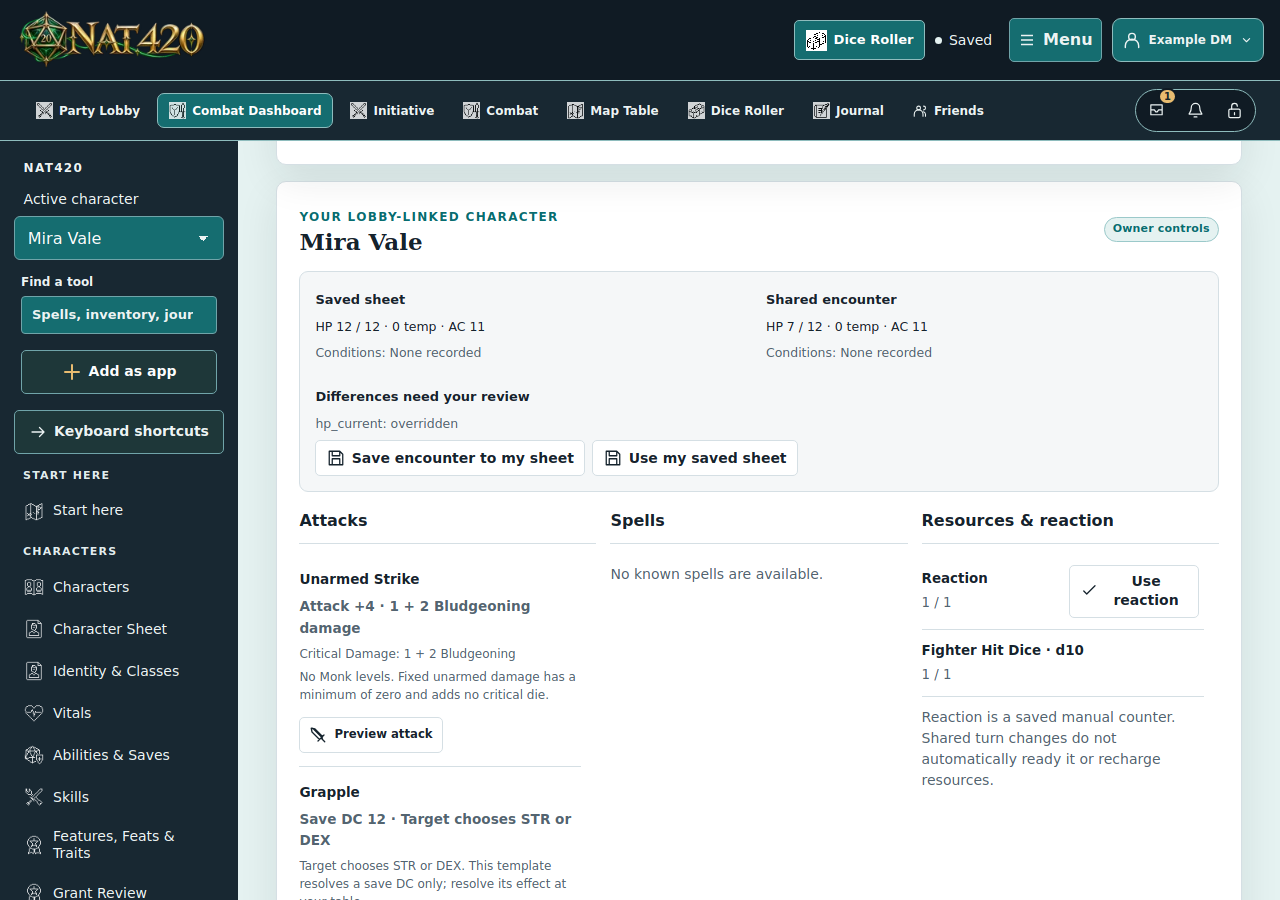
Encounter HP, AC, and conditions can differ from a character’s saved sheet. Open Combat Dashboard to review both. Where synchronization is available, nonconflicting sheet updates can flow into the encounter; encounter overrides are retained. Use the explicit owner reconciliation controls to save or import the intended values.
Refresh my sheet snapshot refreshes the character’s encounter snapshot; review the action before confirming. Other players cannot edit your saved character through the lobby.
Store pets and transformation stat blocks in Allies & Wild Shapes. The DM’s Add NPC or ally picker can copy entries from the DM’s own characters into the encounter, including their saved vitals and stat blocks. Other players’ companions can be entered manually after reviewing their statistics. Adding a participant leaves initiative at 0; choose a roll separately during setup or edit a newcomer’s initiative during combat.
Open the map and shared rewards
Choose Map Table to use the lobby’s shared battle map. The DM can generate rooms, halls, and areas; specify an exact number of generated floor cells to exclude; and choose an edge or the whole area. Exclusions leave a connected floor and must leave at least one cell. On hex maps the count refers to hexes.
New maps start with Fog of War off. Enable fog before inviting players if unexplored areas should be concealed. Use the map’s player preview to inspect what the table can see.
Party loot opens the shared chest. It is separate from your character’s Group bag. Deposits, distributions, and claims require their own review. Follow the party loot guide for coin splits and reservations.
Add friends and send private messages
Find a registered player under The party and choose Add friend. The recipient accepts the request before friendship begins. An incoming request shows Accept friend request. Friendship can make characters shared with all friends visible, so review character visibility deliberately.
Choose Message beside a player to compose private correspondence. You can message a current party member or pending friend connection before a friend request is accepted. You can also use Message by profile in Inbox with a player’s shared profile link. Review the named recipient and text, then choose Send privately.
The recipient can reply from Inbox and block further private messages. Private messages are not party chat and do not appear in the shared lobby. Inventory gifts still require accepted friendship, or the host’s DM award controls; sending a message does not grant gift or character access.
Close, return, and recover safely
Party tables have no scheduled inactivity expiry. Players can leave; the DM can remove a player, close the lobby, or delete it. Closing makes the table read-only. Reopening or rotating the invite code replaces the admission code; existing members keep their access.
If a connection fails after an action, use the displayed refresh or saved-status check before repeating it. The action may already be committed. Party changes are not queued for offline delivery.
When everyone returns, open the existing table under Your party tables, review the roster and saved values, and continue from the confirmed state.
When the table does not match what you expected
- Create lobby is missing or unavailable
- The host should enable Dungeon Master controls in Settings and save them, then reopen Party Lobby. A host with three open lobbies must close one before creating another. Site-administrator access is not required.
- A player cannot join with the code
- Confirm the DM’s current code, an open lobby, and Allow joining with the code. Reopening or rotating the code makes an earlier code obsolete. Select an unarchived character owned by the joining account; if the DM removed that membership, ask the DM to resolve access rather than repeatedly trying the code.
- The added creature shows initiative 0
- Adding it is a setup action, not a roll. During setup, use the available individual roll or Roll for all. In an active encounter, have the DM review and edit the newcomer’s initiative without rerolling the existing order.
- My sheet and the lobby show different HP
- Inspect both values in Combat Dashboard. Encounter overrides can be intentional. The owner should review the available reconciliation or snapshot-refresh action and confirm the intended direction; another player cannot fix the saved sheet for you.
- A save, roll, or turn advance lost its response
- Pause and use the displayed status or reload controls before repeating the action. Review the confirmed actor, round, HP, or history entry. The first request may have committed; party actions are not queued for later offline delivery.
After the table is confirmed, return to the session checklist’s rewards and recap stage rather than creating another lobby to continue the same session.